 Keeptab
How to use split view in Chrome
Published
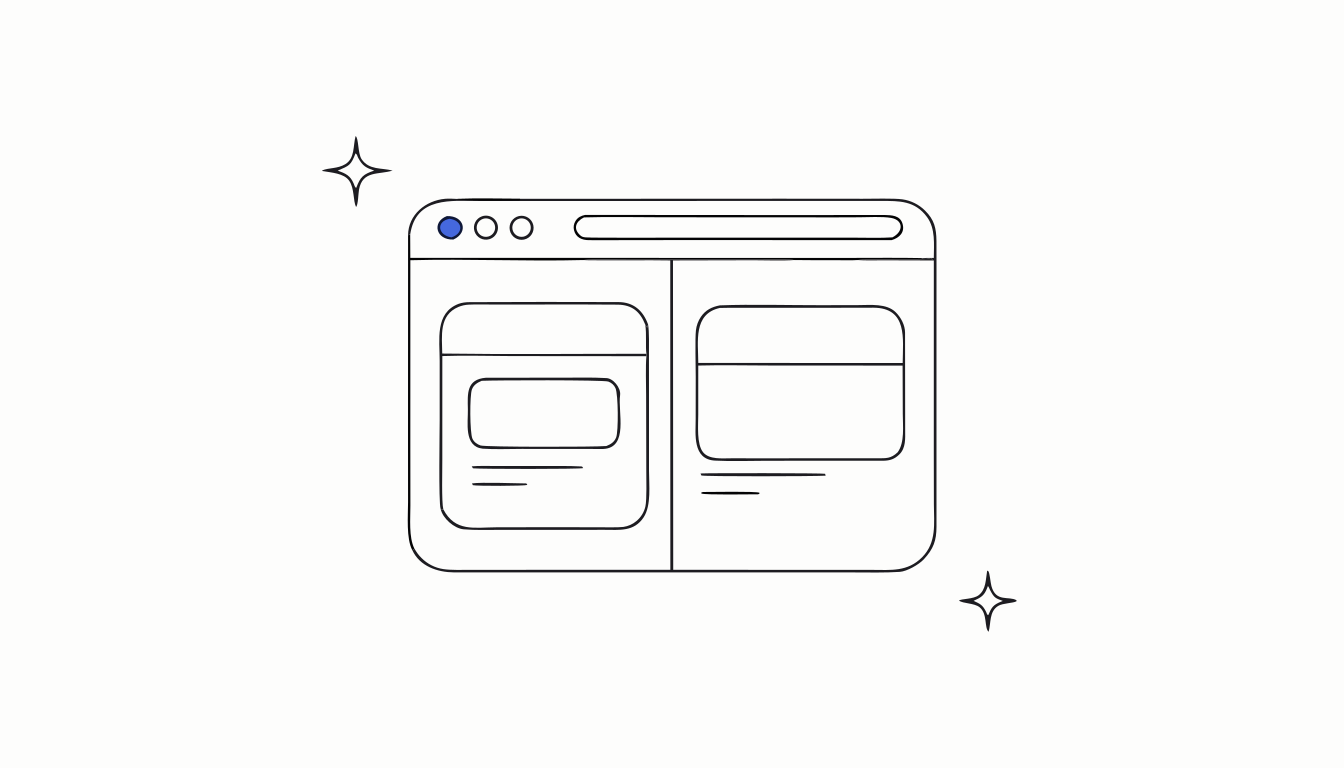
In short: Right-click a tab and select Add tab to new split view, or press Shift+Alt+N (Cmd+Option+N on Mac).[1] Chrome then shows two websites in one window, side by side or stacked.[1]
Copying figures from a report into a spreadsheet means flipping between tabs fifty times. Split view puts both pages on screen at once, in the same window.
3 ways to open split view
- Right-click a tab. On the active tab, select Add tab to new split view. On another tab, select New split view with current tab.[1]
- Drag a tab to the left or right edge of the window and hold until a plus icon labeled "Create split view" appears, then release. Use the bottom edge for a stacked view.[1]
- Keyboard: Shift+Alt+N on Windows and Linux, Cmd+Option+N on Mac, Ctrl+Alt+N on a Chromebook.[1]
For a link, right-click it and select Open link in split view.[1]
Active and inactive view
One view is always active, with a thicker border. The back button, address bar, Translate, Print and Reading mode apply to the active view only.[1] You can scroll the inactive view without activating it, and a click makes it active.[1]
Swap, stack or separate
Right-click a tab in split view, or select the split view icon on the left of the address bar. You can then:[1]
- Reverse position to swap the two pages.
- Change to stacked or side-by-side view.
- Close one of the views.
- Separate split view to turn them back into regular tabs.
Tired of tabs snapping into split view while you drag? Go to Settings > Appearance and turn off Allow split view drag-and-drop on left, right, or bottom edge of window.[1]
The limits
- Two pages, not more. Split view displays 2 websites at a time.[1]
- It doesn't reduce your tabs. Every other tab stays open behind it.
Need more room for tab titles? Try vertical tabs in Chrome.
Close tabs without fear. Keeptab saves your tabs in one click, backs them up every hour and notes your open tabs every 5 minutes. Free for Chrome.
Add to Chrome — it's freeTwo pages in front, the rest put away
Split view works best when your tab strip is calm. Keeptab, our free Chrome extension, saves the tabs to the left or right of the current one as a list in a click and closes them.[2] Search the list by word, date or site when you need a page back.[2]
FAQ
How do I put two tabs side by side in Chrome?
Right-click a tab and select Add tab to new split view, or press Shift+Alt+N (Cmd+Option+N on Mac).
How do I turn off split view in Chrome?
Right-click a tab in split view and select Separate split view. The pages go back to being regular tabs.
Can I stack the two pages instead?
Yes. Right-click a tab in split view and choose Change to stacked view, or drag a tab to the bottom edge of the window.
Sources
- Google Chrome Help. Use split view for multitasking in Chrome. https://support.google.com/chrome/answer/16971124?hl=en&co=GENIE.Platform%3DDesktop
- Keeptab. The OneTab alternative to stop losing your tabs. https://keep-tab.com/onetab-alternative
Close tabs without fear
Keeptab saves your tabs in one click, backs them up every hour and notes your open tabs every 5 minutes. Free for Chrome.
Add to Chrome — it's free