 Keeptab
How to use the Chrome Reading List
Published
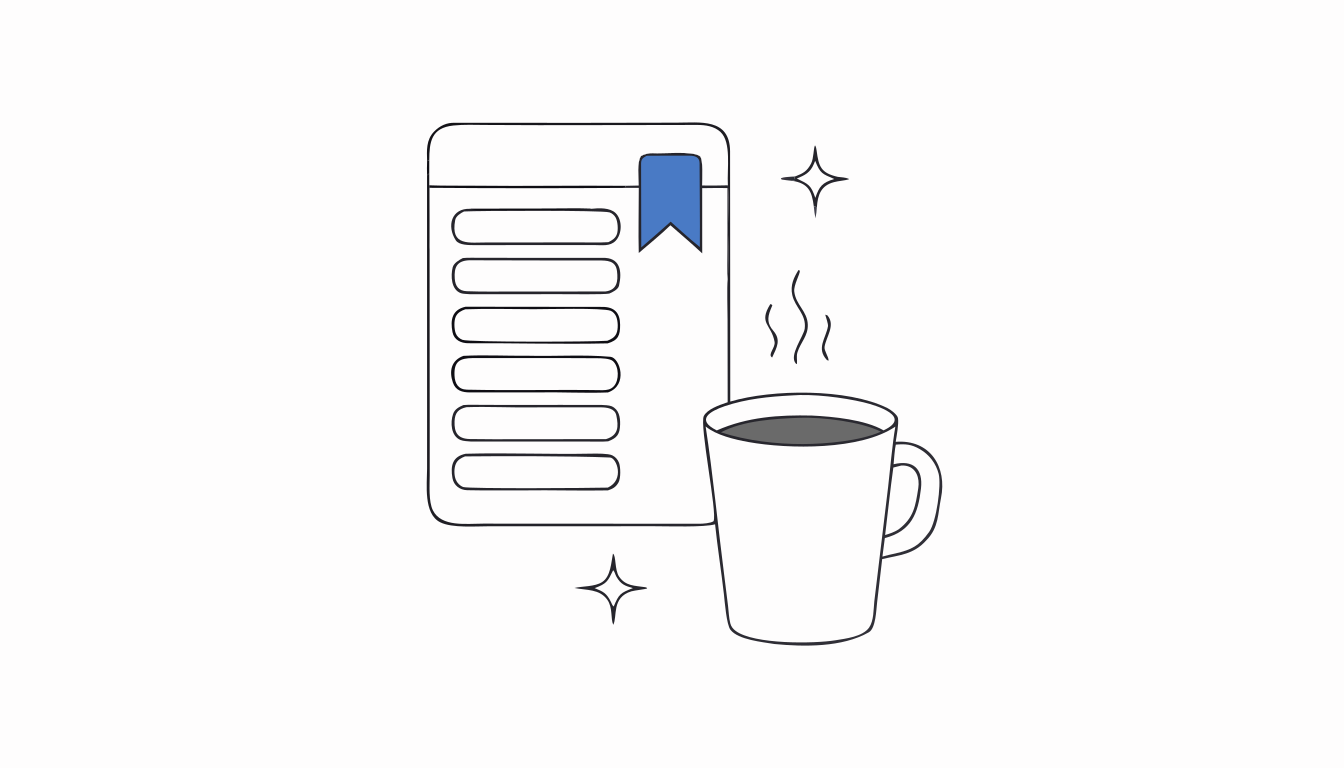
In short: Right-click a tab and select Add tab to reading list. To open the list, go to More > Bookmarks and lists > Reading list > Show reading list.[1] For offline reading, save the page as a file with More > Cast, save, and share > Save page as.[1]
An article you want to read tonight shouldn't stay open all day as tab number 23. That's what the Reading List is for.
Add a page to your Reading List
- Go to the page you want to read later.
- Select More > Bookmarks and lists > Reading list.
- Select Add tab to reading list.[1]
Faster: right-click the tab and select Add tab to reading list.[1] Then close the tab. That's the point.
Find your Reading List
Select More > Bookmarks and lists > Reading list > Show reading list. It opens in the side panel, where you can reorder, edit and delete items.[1]
Read offline
To keep a copy you can open without a connection, save the page as a file while you're online: More > Cast, save, and share > Save page as, choose a place, then Save. The file opens in your default browser.[1]
The limits
- One page at a time. The Reading List is made for articles, not for the 20 tabs of a research session.
- No folders. Everything lands in one list, so it grows into a second pile of tabs.
- Offline copies are manual. Each page has to be saved as a file, one by one.[1]
For a page you'll come back to for months, a bookmark in a folder is better. See how to organize Chrome bookmarks.
Close tabs without fear. Keeptab saves your tabs in one click, backs them up every hour and notes your open tabs every 5 minutes. Free for Chrome.
Add to Chrome — it's freeWhen it's a whole window to read later
Keeptab, our free Chrome extension, saves all the tabs of a window as one list in a click, then closes them.[2] Each list is written and read back before any tab closes, and you can search it by word, date or site.[2]
Lists are backed up every hour, with a 30-day trash for the ones you delete.[2]
FAQ
Where is the Reading List in Chrome?
Select More, then Bookmarks and lists, then Reading list, then Show reading list. It opens in the side panel.
How do I add a tab to the Chrome Reading List?
Right-click the tab and select Add tab to reading list.
Can I read Reading List pages offline?
Google's help explains offline reading by saving the page as a file with Save page as, while you're online.
Sources
- Google Chrome Help. Read pages later & offline. https://support.google.com/chrome/answer/7343019?hl=en&co=GENIE.Platform%3DDesktop
- Keeptab. The OneTab alternative to stop losing your tabs. https://keep-tab.com/onetab-alternative
Close tabs without fear
Keeptab saves your tabs in one click, backs them up every hour and notes your open tabs every 5 minutes. Free for Chrome.
Add to Chrome — it's free