 Keeptab
How to use Chrome profiles to separate work and personal tabs
Published
In short: Select Profile at the top right of Chrome, then Add Chrome profile. Each profile keeps its own bookmarks, history, passwords and settings.[1] Switch any time from the same Profile button.[1]
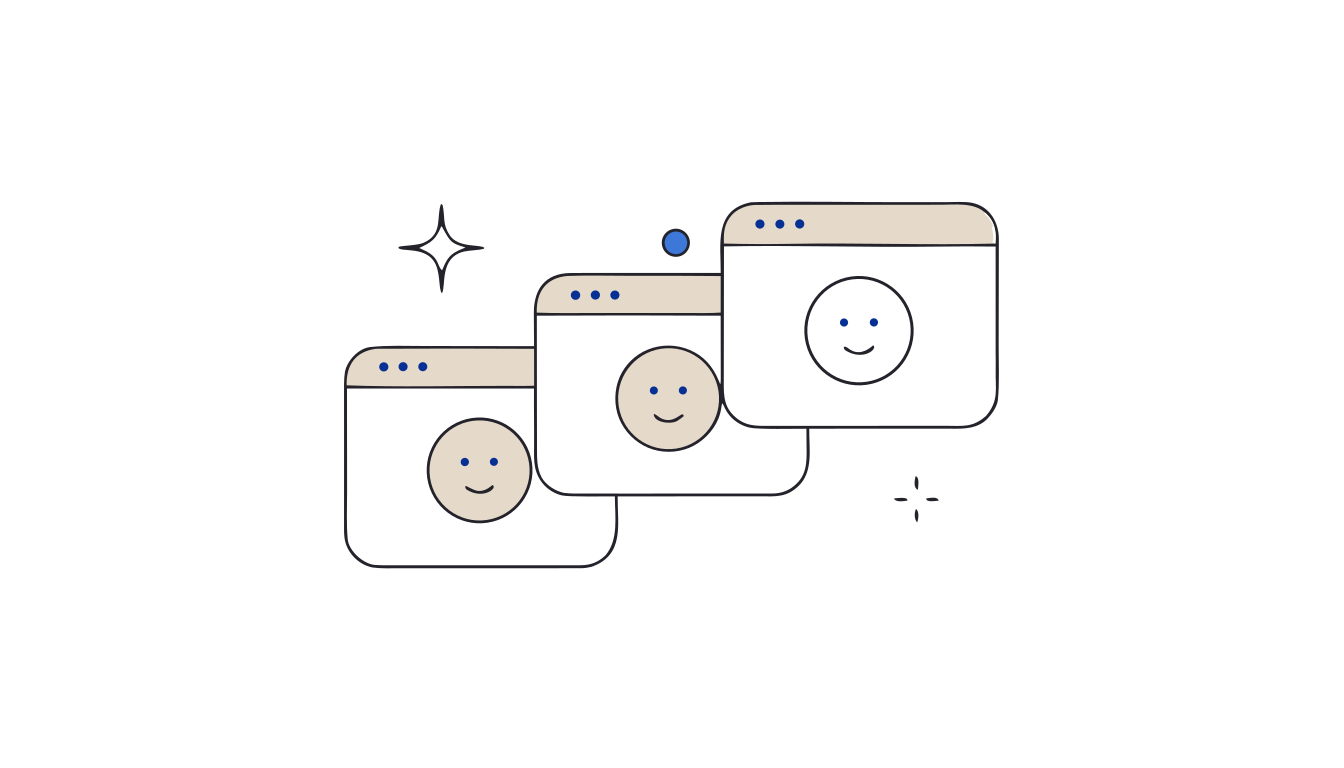
Work tabs next to holiday plans, two Google accounts fighting over one window. A Chrome profile gives each side of your life its own browser.
Add a profile
- Open Chrome. At the top right, select Profile > Add Chrome profile.[1]
- Choose a name, a photo and a color scheme.[1] The color helps you tell windows apart at a glance.
If you sign in with a Google Account in the new profile, the profile takes the account name, and your bookmarks and passwords follow you to your other signed-in devices.[1]
Switch between profiles
Select Profile at the top right and pick the one you want.[1] Each profile opens in its own window, so work and personal tabs never mix.
Want to choose every time? Select Profile, then under "Other Chrome profiles" select Manage Chrome profiles and check Show on startup.[1]
Rename, recolor or remove
- Edit: Profile > Manage Chrome profiles, then More > Edit on the profile. Changes save automatically.[1] For the current profile, Profile > Customize profile works too.[1]
- Remove: same screen, More > Delete. Careful: the profile's bookmarks, history and passwords are erased from the computer.[1]
A profile isn't a lock
Anyone using your computer can switch to any profile on it and see, for example, the sites you visited.[1] Profiles separate, they don't protect. Only share your device with people you trust.[1]
Close tabs without fear. Keeptab saves your tabs in one click, backs them up every hour and notes your open tabs every 5 minutes. Free for Chrome.
Add to Chrome — it's freeKeep each profile's tabs tidy
Keeptab, our free Chrome extension, lives in the profile where you install it, so your work lists stay with work. Save a window as a list in one click, close it, and find any page later by word, date or site.[2]
FAQ
How do I add a profile in Chrome?
Select Profile at the top right of Chrome, then Add Chrome profile. Choose a name, a photo and a color scheme.
Do Chrome profiles keep tabs separate?
Yes. Each profile keeps its own bookmarks, history, passwords and settings, and opens in its own window.
What happens when I delete a Chrome profile?
Its bookmarks, history, passwords and other settings are erased from the computer.
Sources
- Google Chrome Help. Manage Chrome with multiple profiles. https://support.google.com/chrome/answer/2364824?hl=en&co=GENIE.Platform%3DDesktop
- Keeptab. The OneTab alternative to stop losing your tabs. https://keep-tab.com/onetab-alternative
Close tabs without fear
Keeptab saves your tabs in one click, backs them up every hour and notes your open tabs every 5 minutes. Free for Chrome.
Add to Chrome — it's free