 Keeptab
How to reopen a closed tab in Chrome
Published
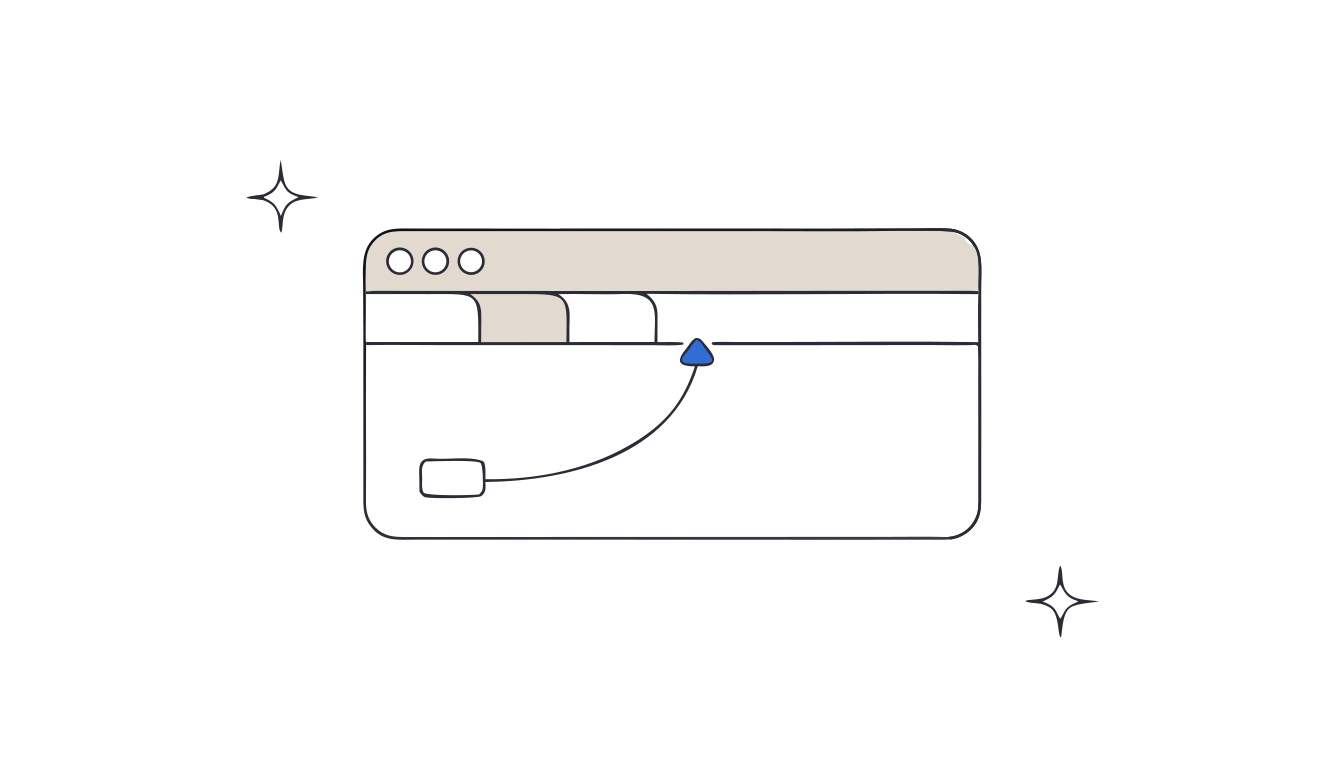
In short: Press Ctrl+Shift+T on Windows or ⌘+Shift+T on Mac. Chrome reopens your closed tabs in the order you closed them, so press it again to go further back.[1] For a page closed days ago, open your history with Ctrl+H (⌘+Y on Mac): it lists the pages you visited in the last 90 days.[1][2]
You meant to close one tab and your finger hit the wrong one. Or you closed a page this morning and now you need it back. Both are fixable in a few seconds.
Reopen the tab you just closed
- Press Ctrl+Shift+T on Windows, or ⌘+Shift+T on Mac.
- Press it again to bring back the tab you closed before that one. Chrome goes back in the order you closed them.[1]
Closed a whole window by mistake? The same shortcut brings it back.[3]
This is the fastest way back, and it works right after a mistake. The further back you go, the more you're guessing.
Find a tab you closed earlier
Your history lists the pages you visited in Chrome over the last 90 days.[2]
- Press Ctrl+H on Windows or ⌘+Y on Mac.[1] You can also select More > History > History.[2]
- Type a word from the page in the search bar, or browse By date.[2]
- Click the page to open it.
Faster still: type @history in the address bar, press Tab or Space, then a few words from the page.[2]
Reopen a whole research session
In the By group tab of your history, Chrome sorts your browsing into topics. Next to a group, select More > Open all in new tab group to bring every page of that topic back at once.[2]
If the whole browser shut down instead, see how to recover tabs after a Chrome crash.
Where Chrome's history falls short
- Pages opened in Incognito mode aren't stored in history.[2]
- Pages older than 90 days, or deleted from history, are gone.[2]
- History is a list of pages, not of tabs. It doesn't remember which ten tabs you had open together for a project.
Close tabs without fear. Keeptab saves your tabs in one click, backs them up every hour and notes your open tabs every 5 minutes. Free for Chrome.
Add to Chrome — it's freeClose tabs without the guesswork
Keeptab is our free Chrome extension for closing tabs you'll want later. One click saves a window into a list, and the list is written and read back before a single tab closes.[4] You find it again by word, date or site.[4]
It also notes your open tabs every 5 minutes, and a deleted list sits in a 30-day trash.[4] So the tab you closed on purpose is still one click away next month.
FAQ
What is the shortcut to reopen a closed tab in Chrome?
Ctrl+Shift+T on Windows and ⌘+Shift+T on Mac. Press it several times to reopen tabs in the order you closed them. It also brings back a window closed by mistake.
How far back can I find a closed tab?
Chrome's history lists the pages you visited in the last 90 days. Open it with Ctrl+H, or ⌘+Y on Mac, and search by word.
Can I recover a tab closed in Incognito mode?
Not from history. Chrome doesn't store pages you visited in Incognito mode.
Sources
- Google Chrome Help. Chrome keyboard shortcuts. https://support.google.com/chrome/answer/157179?hl=en&co=GENIE.Platform%3DDesktop
- Google Chrome Help. Check or delete your Chrome browsing history. https://support.google.com/chrome/answer/95589?hl=en&co=GENIE.Platform%3DDesktop
- Google Chrome Help. Manage tabs in Chrome. https://support.google.com/chrome/answer/2391819?hl=en&co=GENIE.Platform%3DDesktop
- Keeptab. The OneTab alternative to stop losing your tabs. https://keep-tab.com/onetab-alternative
Close tabs without fear
Keeptab saves your tabs in one click, backs them up every hour and notes your open tabs every 5 minutes. Free for Chrome.
Add to Chrome — it's free