 Keeptab
How to pin tabs in Chrome
Published
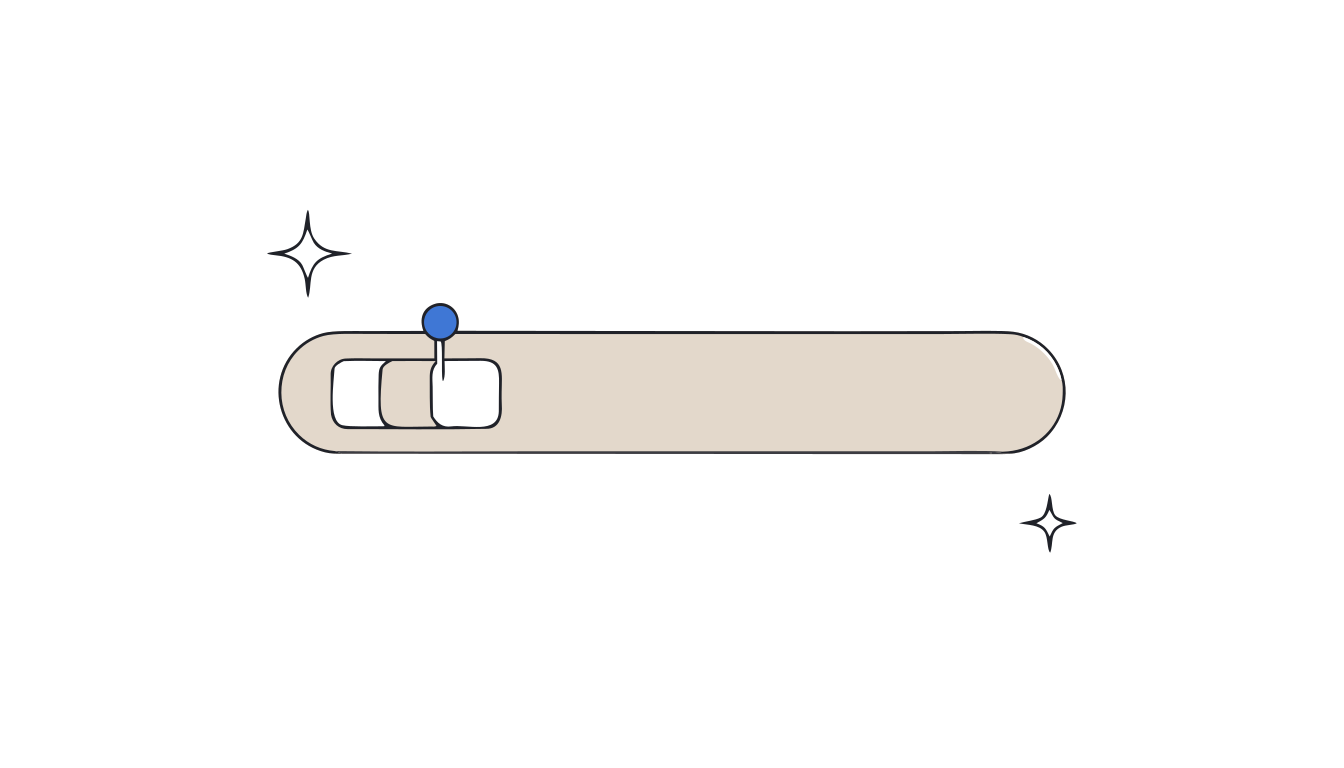
In short: Right-click the tab and select Pin. Pinned tabs get smaller and only show the site's icon.[1] To undo it, right-click and select Unpin.[1]
Mail, calendar, the chat you answer all day. Some tabs never close. Pinning tucks them to the left, out of the way of everything else.
Pin or unpin a tab
Pinned tabs are smaller and only show the site's icon.[1] To reorder them, drag them along the top of the window.[1]
Pin several tabs at once
- Hold Ctrl and select each tab, or select the first one, hold Shift and select the last.[1]
- Right-click any highlighted tab and choose Pin.[1]
The same right-click menu can group, move, mute or close them all. See how to select multiple tabs.
When pinning helps, and when it doesn't
A Carnegie Mellon study found 41.7% of tabs are pages people return to often.[2] Those are the ones to pin. But the researchers note the limit: a pinned tab shrinks to an icon, which works for a well-known app, not for ten documents that share the same icon.[2]
For many similar pages, readable titles beat icons. Try vertical tabs, which show full page titles.[1]
Close tabs without fear. Keeptab saves your tabs in one click, backs them up every hour and notes your open tabs every 5 minutes. Free for Chrome.
Add to Chrome — it's freeFor the tabs that don't deserve a pin
Pin the five you use all day. For the rest, Keeptab, our free Chrome extension, saves them as a list in one click, either a whole window or just the tabs to the left or right.[3] Find them later by word, date or site.[3]
FAQ
How do I pin a tab in Chrome?
Right-click the tab and select Pin. The tab gets smaller and only shows the site's icon.
How do I unpin a tab in Chrome?
Right-click the pinned tab and select Unpin.
Can I pin several tabs at once?
Yes. Hold Ctrl or Shift to highlight several tabs, then right-click one of them and select Pin.
Sources
- Google Chrome Help. Manage tabs in Chrome. https://support.google.com/chrome/answer/2391819?hl=en&co=GENIE.Platform%3DDesktop
- Carnegie Mellon University. Chang et al., “When the Tab Comes Due: Challenges in the Cost Structure of Browser Tab Usage”, CHI 2021. https://doi.org/10.1145/3411764.3445585
- Keeptab. The OneTab alternative to stop losing your tabs. https://keep-tab.com/onetab-alternative
Close tabs without fear
Keeptab saves your tabs in one click, backs them up every hour and notes your open tabs every 5 minutes. Free for Chrome.
Add to Chrome — it's free