 Keeptab
How to move your Chrome tabs to another computer
Published
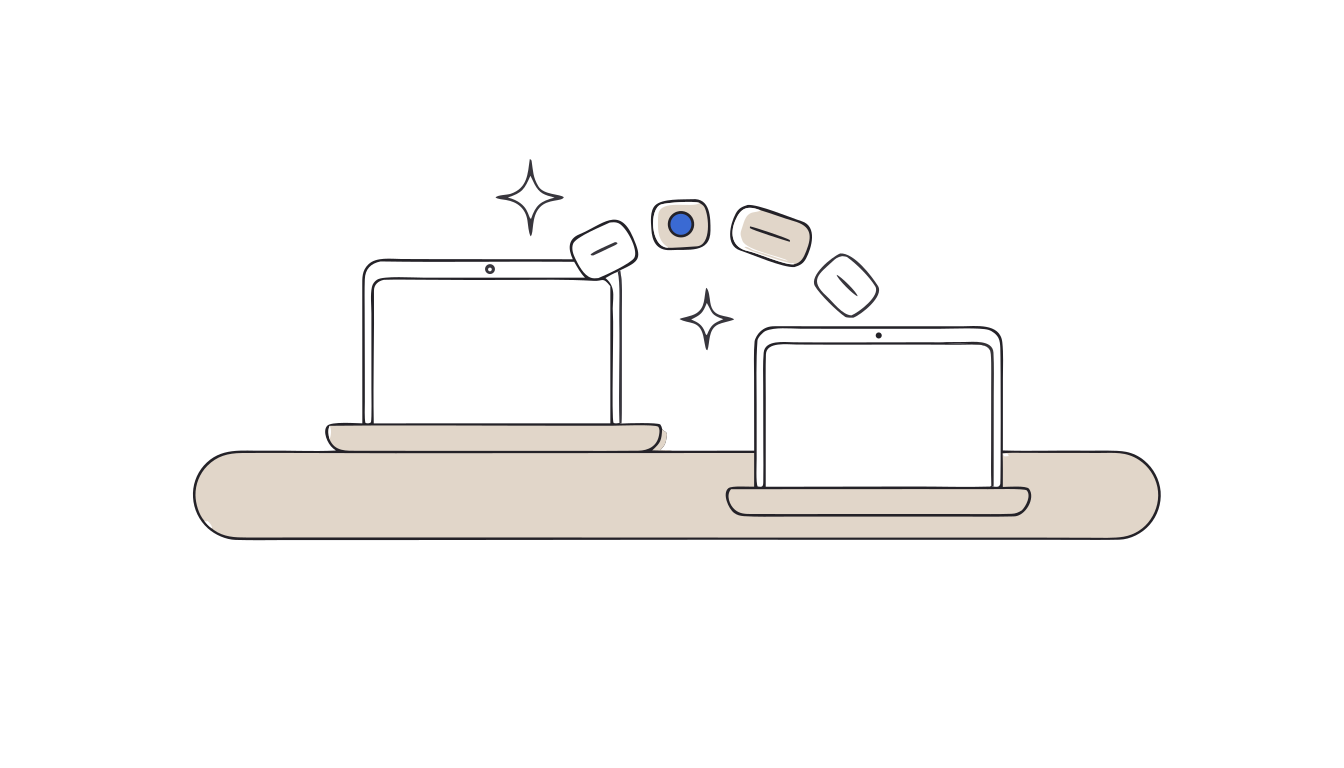
In short: The simplest way: sign in to Chrome on both computers and turn on “History and tabs” sync. Your open tabs then show in More › History › History › “Tabs from other devices”.[1] Without sync, save your tabs as bookmarks (Ctrl + Shift + D)[2] and export them to an HTML file.[3]
New laptop, old tabs
You got a new computer, or you work on two. Your important tabs are on the other one. Copying 40 links by hand is not an option. Chrome gives you three ways to bring them over.
Method 1: sync “History and tabs”
On both computers, sign in to Chrome with the same Google Account, then:[1]
- Select More (the three dots) › Settings › You and Google.
- Select your account name and turn on “History and tabs”.
Then, on the new computer, open More › History › History and look for “Tabs from other devices”.[1] You can open them from there, one by one.
Method 2: save tabs as bookmarks
On the old computer, press Ctrl + Shift + D (⌘ + Shift + D on Mac) to save all open tabs as bookmarks in a new folder.[2] With sync on, your bookmarks follow your Google Account (up to 100,000 bookmarks).[1] We explain this shortcut in detail in how to save all open tabs in Chrome.
Method 3: export and import an HTML file
No sync, or a different account? Use a file:[3]
- On the old computer: More › Bookmarks and lists › Bookmark Manager › More › Export Bookmarks. Chrome creates an HTML file.
- Copy the file to the new computer (USB key, email, cloud drive).
- On the new computer: More › Bookmarks and lists › Import bookmarks and settings, and choose the file.
The limits
- Sync needs your Google Account. If you are signed out, bookmarks are saved only on that device.[1]
- The file method is manual. It takes a few steps each time, and the file is only as fresh as your last export.[3]
Close tabs without fear. Keeptab saves your tabs in one click, backs them up every hour and notes your open tabs every 5 minutes. Free for Chrome.
Add to Chrome — it's freeA safer way: Keeptab
Keeptab is a free tab manager for Chrome, made by us. It was built for one job: stop losing your tabs.
- One click saves your open tabs into a list and closes them.
- Automatic backup every hour, and a note of your open tabs every 5 minutes in case Chrome crashes.
- A 30-day trash: a list you delete can still be brought back.
- A daily backup file that survives even if you uninstall the extension.
- OneTab import in one paste, if you are moving from it.
Keeptab Sync, to get your lists on several computers, is an optional paid add-on. Everything else is free.
FAQ
How do I see Chrome tabs from my other computer?
Sign in to Chrome on both computers and turn on “History and tabs” in Settings › You and Google. Then open More › History › History › “Tabs from other devices” (Google Chrome Help).
How do I transfer Chrome bookmarks without syncing?
Export them: More › Bookmarks and lists › Bookmark Manager › More › Export Bookmarks. Then import the HTML file on the new computer with More › Bookmarks and lists › Import bookmarks and settings (Google Chrome Help).
How many bookmarks can Chrome sync?
Google Chrome Help says you can save up to 100,000 bookmarks in your Google Account.
Sources
- Google Chrome Help. Get your bookmarks, passwords, and more on all your devices. https://support.google.com/chrome/answer/165139?hl=en&co=GENIE.Platform%3DDesktop
- Google Chrome Help. Chrome keyboard shortcuts. https://support.google.com/chrome/answer/157179?hl=en&co=GENIE.Platform%3DDesktop
- Google Chrome Help. Import Chrome bookmarks & settings. https://support.google.com/chrome/answer/96816?hl=en&co=GENIE.Platform%3DDesktop
Close tabs without fear
Keeptab saves your tabs in one click, backs them up every hour and notes your open tabs every 5 minutes. Free for Chrome.
Add to Chrome — it's free