 Keeptab Dark
Will others see my dark mode in Google Docs?
Published
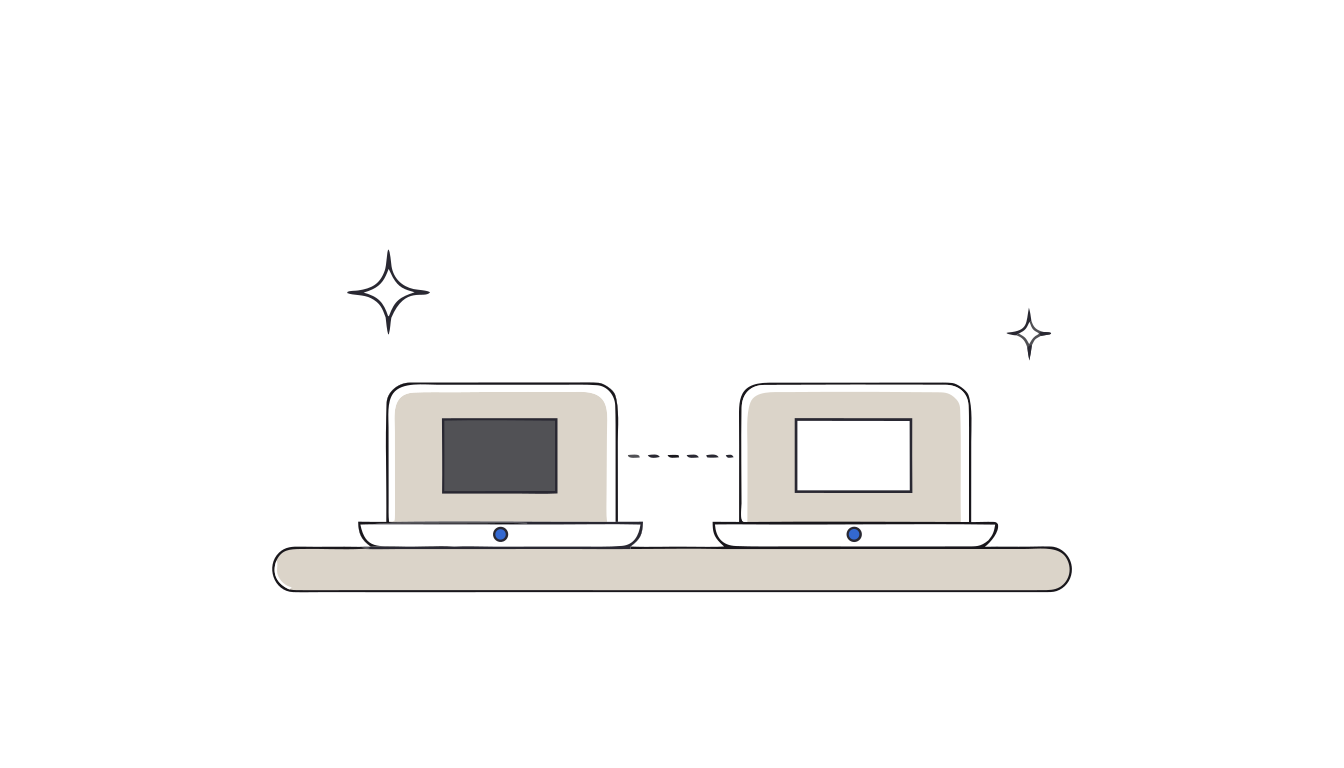
In short: No, as long as you use a display theme. Google says collaborators can't see the theme you choose in the Docs apps.[1] But if you darken a document by changing its page color in Page setup, you're editing the document itself, and everyone who opens it gets that color.[2]
It's a fair worry. You write at night on a dark page, you share the document with your team, and suddenly you picture your manager opening a black document at 9 a.m. Whether that happens depends entirely on how you made the page dark.
Two very different ways to get a dark page
There's a display theme, which changes how the file looks on your screen. And there's formatting, which changes the file. From your side they can look identical. For everyone else, they're nothing alike.
A display theme: only you see it
The Google Docs, Sheets and Slides apps for phones and tablets have a dark theme, and Google is explicit: collaborators can't see the theme you choose.[1]
Google also notes that dark theme automatically adjusts your documents and sheets to fit the theme. That's why the apps offer View in light theme, to preview how a document will look for collaborators.[1] If you've used colored text or highlights, that preview is worth a glance before sharing.
Page color: everyone sees it
On a computer, Google Docs has no dark mode. A common workaround is to open File › Page setup and change the Page color.[2] It works, but it's an edit to the document, like changing a font. Anyone who opens the file sees the dark page, and they'd need to change it back to get a white one.
Two details from Google's help: page settings like this aren't available in pageless format, where you update the background color instead.[2] Either way, it's still part of the document.
Our reading: page color is a fine choice for a document only you use. For anything shared, printed or submitted, it's the option most likely to surprise someone. We cover it step by step in a later article on black backgrounds in Google Docs.
A quick check before you share
- Did you change a setting in the app or browser? That's a theme. Others see the normal document.[1]
- Did you change something in File › Page setup? That's formatting. Others see it too.[2]
- Not sure? On mobile, use View in light theme to see the collaborator's view.[1]
For the full picture of what Docs offers on each device, see Google Docs dark mode.
Docs, Sheets and Slides in real dark mode. Keeptab Dark turns the whole Google Docs, Sheets, Slides and Excel page dark. Images keep their colors, and there is no white flash. Alt+Shift+D turns it on or off.
Add to Chrome — it's freeA dark Docs on your computer that stays yours
Keeptab Dark is our Chrome extension that works like a display theme, on a computer. It darkens the page in Google Docs, Sheets, Slides and Excel for the web, and the file is unchanged for others, when printing and in PDF.[3]
Before printing, Pro can keep one document light while the rest stay dark.[3] The Soft gray theme is free.[3]
FAQ
Can collaborators see my dark theme in Google Docs?
No. Google says collaborators can't see the theme you choose in the Docs, Sheets and Slides apps. The theme only changes your view.
Does changing the page color in Google Docs affect other people?
Yes. Page color, set in File › Page setup, is part of the document's formatting, so everyone who opens the document sees it.
How can I see what my document looks like for others?
In the Docs or Sheets app, open the file, tap More, then View in light theme to preview how it will look for collaborators.
Sources
- Google Docs Editors Help. Use Dark theme in Google Docs, Sheets & Slides. https://support.google.com/docs/answer/9955476?hl=en&co=GENIE.Platform%3DAndroid
- Google Docs Editors Help. Change page settings on Google Docs. https://support.google.com/docs/answer/10296604?hl=en
- Keeptab Dark. Dark mode for Google Docs, Sheets, Slides and Excel. https://keep-tab.com/dark/
Docs, Sheets and Slides in real dark mode
Keeptab Dark turns the whole Google Docs, Sheets, Slides and Excel page dark. Images keep their colors, and there is no white flash. Alt+Shift+D turns it on or off.
Add to Chrome — it's free